
How to Search Cases by Name
Begin a Haywood name search in the North Carolina Judicial Branch Portal Smart Search, and stick with the default name or record-number criterion at first. Skip the separate Party Name advanced search for now. The official FAQ warns that it limits results and does not support wildcards. If a broad search returns too much, add the Haywood location, then apply a documented case-type, status, or filing-date control to narrow things down.
The Portal is party based. It finds public information tied to a person or a business. It cannot search a Haywood case by charge. Results list parties except victims. Common names need a date range and the Haywood location to shrink the return. A name match alone never proves you have the right case. Check the details before trusting a result.
- Open Smart Search and enter a last name with a first name if available.
- Use the Haywood location filter after the initial criterion is entered.
- Select an available case-type, status, or filing-date filter to refine the search.
- Open a plausible result and compare the parties, assignment, case number, and events.
- Use Search Hearings for the current setting, then call the clerk if the search remains unclear.
Haywood Portal Smart Search
Smart Search is the public viewing tool for Haywood court cases. File & Serve is separate. It is the electronic filing application. The public Portal offers a basic search plus Advanced Filtering. Registration is optional for ordinary public searching. A registered person can save cases in My Cases. Elevated access is restricted. It requires statutory authority and verification, not a general upgraded account.
The Judicial Branch Portal training resources outline the search tools behind Haywood docket search work. The official Portal page shows the statewide access layer. It holds Haywood results once the proper location is selected.
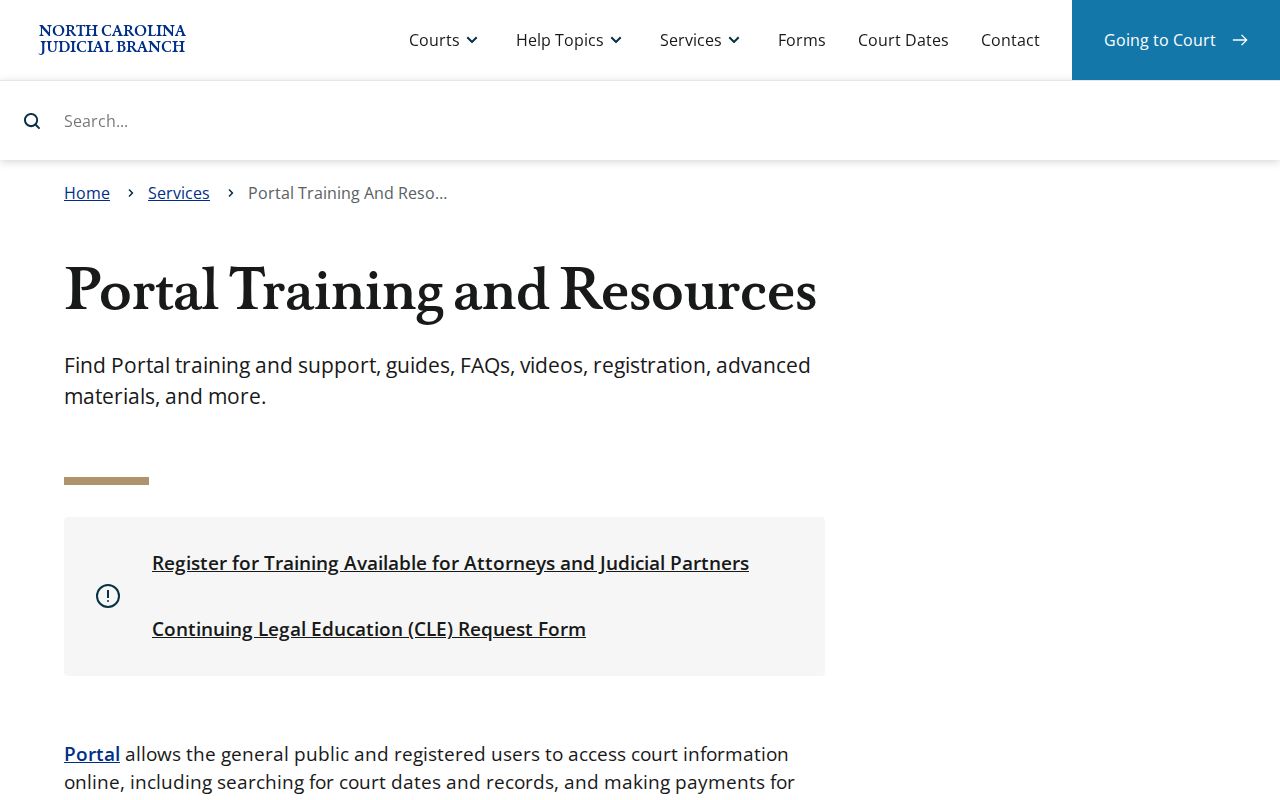
Both Haywood trial divisions sit behind the same state Portal system. The local Clerk of Superior Court keeps the case files themselves. So search statewide, but request records locally.
How to Search by Case Number
A full Haywood record number is usually the most precise key for a docket search. Keep every dash and the complete county code. This matters if the search leads to a payment screen. North Carolina's official examples use case-type cues like 25CR* for a criminal wildcard pattern and 25IF for an infraction-only case. The full number is safer than any homemade abbreviation list.
Portal's wildcard rule is narrow. A case-number wildcard needs at least four characters before the wildcard. A personal-name wildcard needs at least three last-name characters plus a wildcard, and at least one first-name character plus a wildcard. Enter a shorter fragment. You can hit a no-results screen even when a Haywood case exists.
Note: In a traffic or criminal number, the two-digit opening marks the charge year, while CR and IF are the state's criminal-charge and infraction-only cues.
Haywood Docket Search Controls
Advanced Filtering supplements a basic Haywood search; it is not a stand-alone query. Location alone cannot be the only input. Instead, layer a location, party or birth-date range, case type, case status, and filing-date range to narrow the result set. Basic results cap at 200. A focused Haywood query beats scrolling through broad statewide matches.
The official Portal field inventory supplies these documented controls. Dropdown values can change dynamically, so rely on the live Haywood Portal interface for the options it presents on the date of a search.
| Field label | Type | Required | Haywood use |
|---|---|---|---|
| Smart Search criterion | Text | One criterion | Record number or name starts the search. |
| Location | Selector | Optional | Choose Haywood to narrow an existing query. |
| Party or DOB | Text or date range | Optional | Refines a common-name return. |
| Case type | Selector | Optional | Civil Actions, Special Proceedings, Estates, or Criminal Actions. |
| Filing date | Date range | Optional | Limits a Haywood search by filing period. |
| Search Hearings | Text and selectors | Search workflow requires location, hearing type, and dates | Finds the active court setting. |
What a Case Search Shows
Open a Haywood result. You get the Case Summary, also called the Register of Actions. It can show the case header, assignments, and parties. It can also show cause of action in relevant civil or family matters, a chronological event list, hearings, dispositions, financial information when applicable, and public documents. Sections with no available information may not appear. A blank financial block does not mean a Haywood case has no financial history.
Read the chronological events with the hearing result beside them. Events describe the past. Search Hearings is the tool built for the current location and time. Treat the Case Summary as a public docket view, not a promise that every paper record or confidential filing is online.
| Assignment information | Identifies the Haywood court or judicial assignment shown. |
|---|---|
| Party information | Lists case parties but not victims in public Portal results. |
| Case events | Chronological docket occurrences, including filings, orders, and recorded actions. |
| Hearings | Displayed hearing history; confirm a current setting through Search Hearings. |
| Disposition | The status or result shown at resolution. |
| Public documents | Available court documents, excluding sealed and confidential material. |
Haywood Charge Search Limits
A Haywood criminal docket search cannot begin with a charge name. The Enterprise Justice/Odyssey system is party based. The official Portal FAQ states it cannot search by charge. A case number or party name is the documented route to the Case Summary. Once a match appears, look at the details. The case events, public documents, assignments, hearings, and disposition supply the court-record context.
That limit bites when you know a citation description or an alleged offense. It also bites without a case number. Use the person or business field, select Haywood, and work from matching case details. If nothing matches reliably, ask the clerk to help identify the record. Do not guess from a similar name.
Search key: Haywood Portal can narrow a party or record-number query, but an alleged charge is not an official Portal search field.
County vs Statewide Case Search
Haywood County keeps no docket database of its own. The statewide North Carolina Portal serves as the public search layer, and choosing Haywood makes the results county-specific. Two local channels still matter. The clerk's office and courthouse terminal fill the gaps. Use them when a Portal display is incomplete, an older file still lives on paper, or an official copy must be requested. Each channel does different work, so treat them as partners rather than rivals.
NC Judgment Search is a second statewide option. It searches a party name or case number and filters by type, status, location, and judgment date. Its results lean toward judgment information. For the full Haywood County Case Summary, Smart Search is the place to look.
| Channel | Best use | Haywood limitation |
|---|---|---|
| Portal Smart Search | Case number, parties, Case Summary, and public documents | Restricted or historical paper material may not appear. |
| Portal Search Hearings | Current date, location, and time | Does not show whether a hearing is virtual. |
| NC Judgment Search | Indexed judgment lookup | Not the complete Case Summary. |
| Haywood clerk and terminal | Paper-file inspection, copies, and local record questions | Call before travel for terminal details or procedure. |
The Judicial Branch services page lays out the public search and filing services a Haywood case workflow draws on.
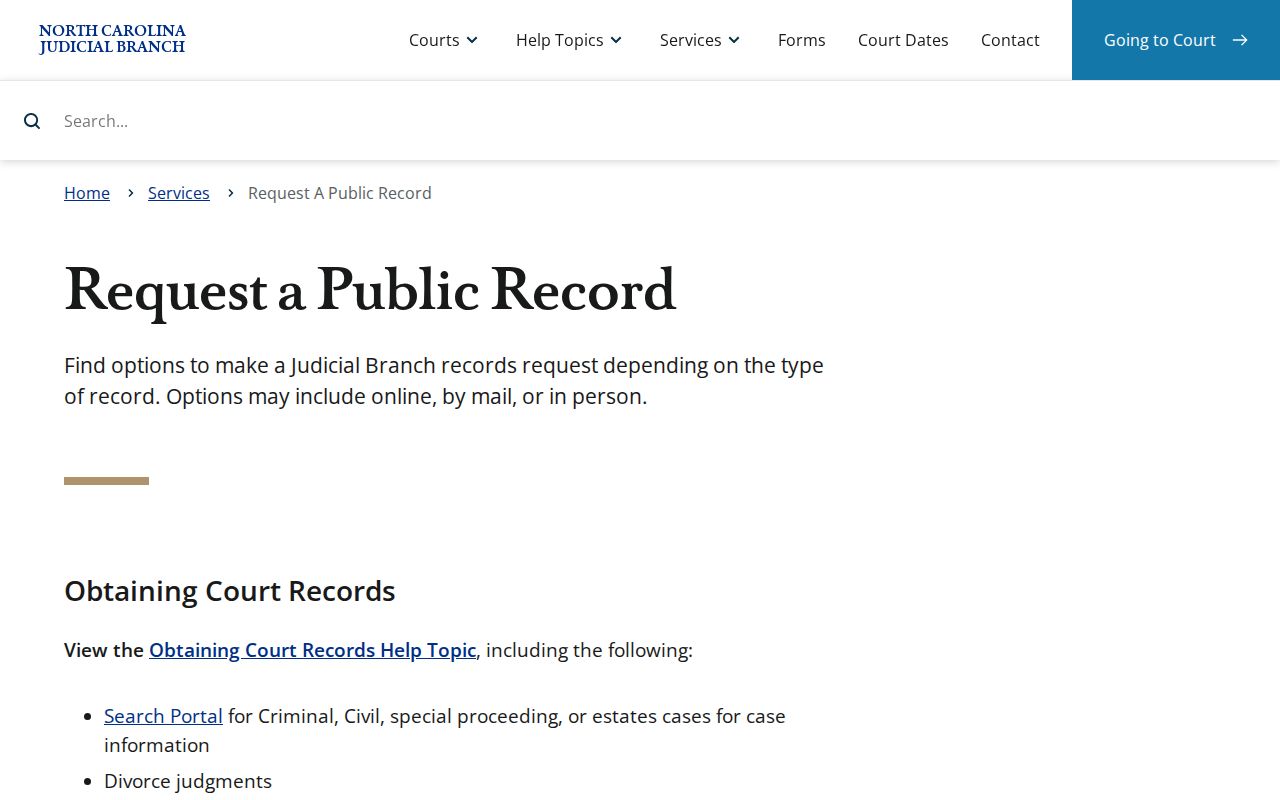
A Haywood Portal result is a guide, not a substitute. It can point you to the right case before you ask the clerk for the local court file itself.
Haywood Judgment Search Use
NC Judgment Search answers a narrower question than a Haywood County docket search. Reach for it when the target is an indexed civil judgment. You will need a party name or case number. A result can carry the case number, disposition status, index date and time. The parties and judgment comments appear too. Then open Smart Search for the full chronology.
One caution matters. An entry that reads like a final index result may still omit events, hearing history, or documents that Portal lists in the Case Summary. So lead with the judgment index when judgments are the question. Then turn to Haywood Smart Search for the wider court record context.
The official File & Serve source shows the separate filing application. That tool handles filings, not a Haywood docket search.
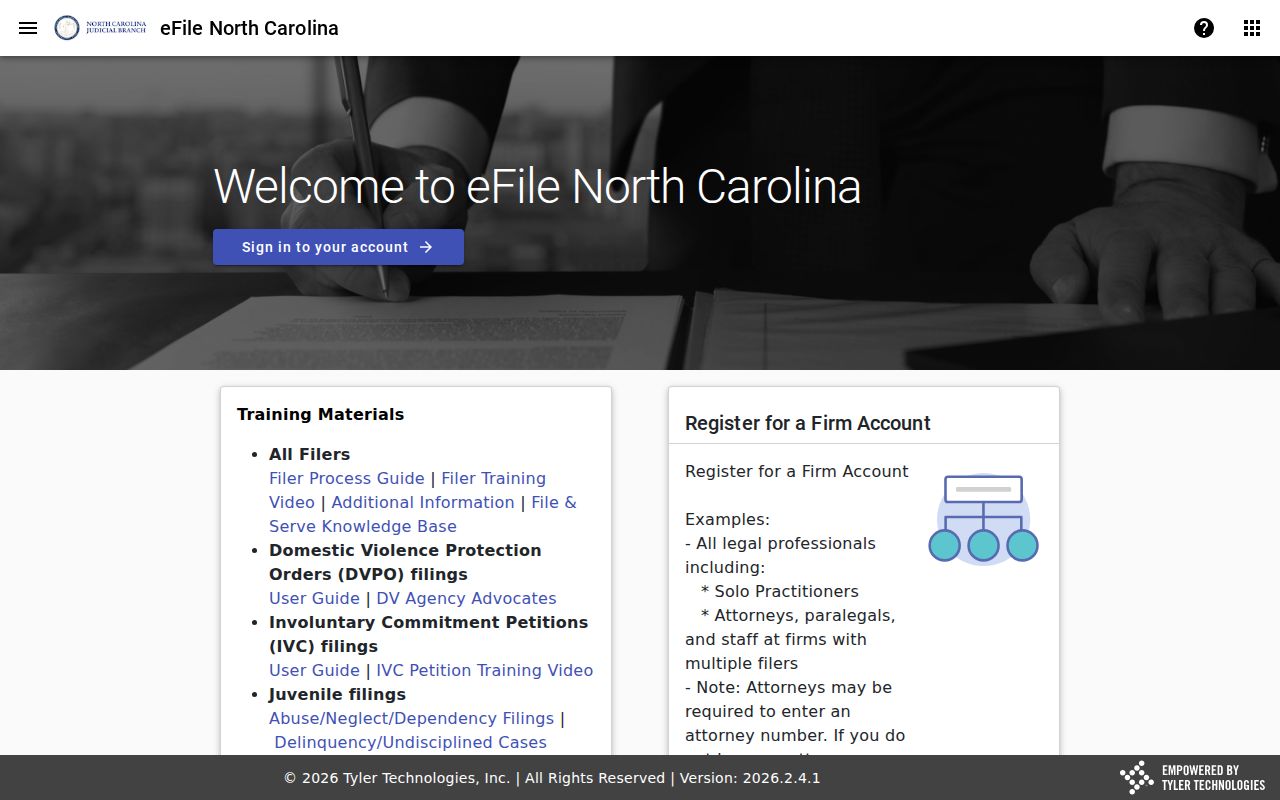
File & Serve is for filing; Portal is the Haywood public viewing and search channel.
Restricted Cases and Access Rules
Sealed and confidential Haywood cases, documents, and data never appear to Portal users. Juvenile records are restricted. Domestic-violence and protective-order matters can be public. But federal requirements limit their web indexing, so the clerk route is the practical fallback. Portal also masks birth-date information. It does not validate Social Security numbers.
An expunged qualifying record will not surface as a public online result. For dismissed or not-guilty criminal matters, G.S. 15A-146 offers expunction routes, including a statutory automatic process for certain qualifying post-2021 cases. Asking to erase an online entry is not the legal route. The Haywood clerk can explain the local court process for a specific matter.
Note: A no-results screen does not prove a Haywood case never existed. The record may be sealed, confidential, expunged, or held only on paper.
Haywood Clerk Search Fallback
When a Haywood Portal search fails, recheck the number, punctuation, location, and filters first. Portal runs a CAPTCHA challenge every ten minutes for anonymous and registered users alike. The browser guidance points to Edge and Chrome. A cache clear or a private-browser session can help after a technical problem. None of those steps turns a restricted record public.
The next Haywood option is the clerk office. Statewide guidance puts a public self-service terminal in a clerk office, and paper files can be inspected in the county where the case sits. The Haywood Clerk of Superior Court answers at (828) 454-6501. The statewide public-record request form covers Judicial Branch administrative records only. County case files are excluded. NCAOC is not the local custodian.
A Judicial Branch records-request source explains the state request route and its county-custodian limitation.
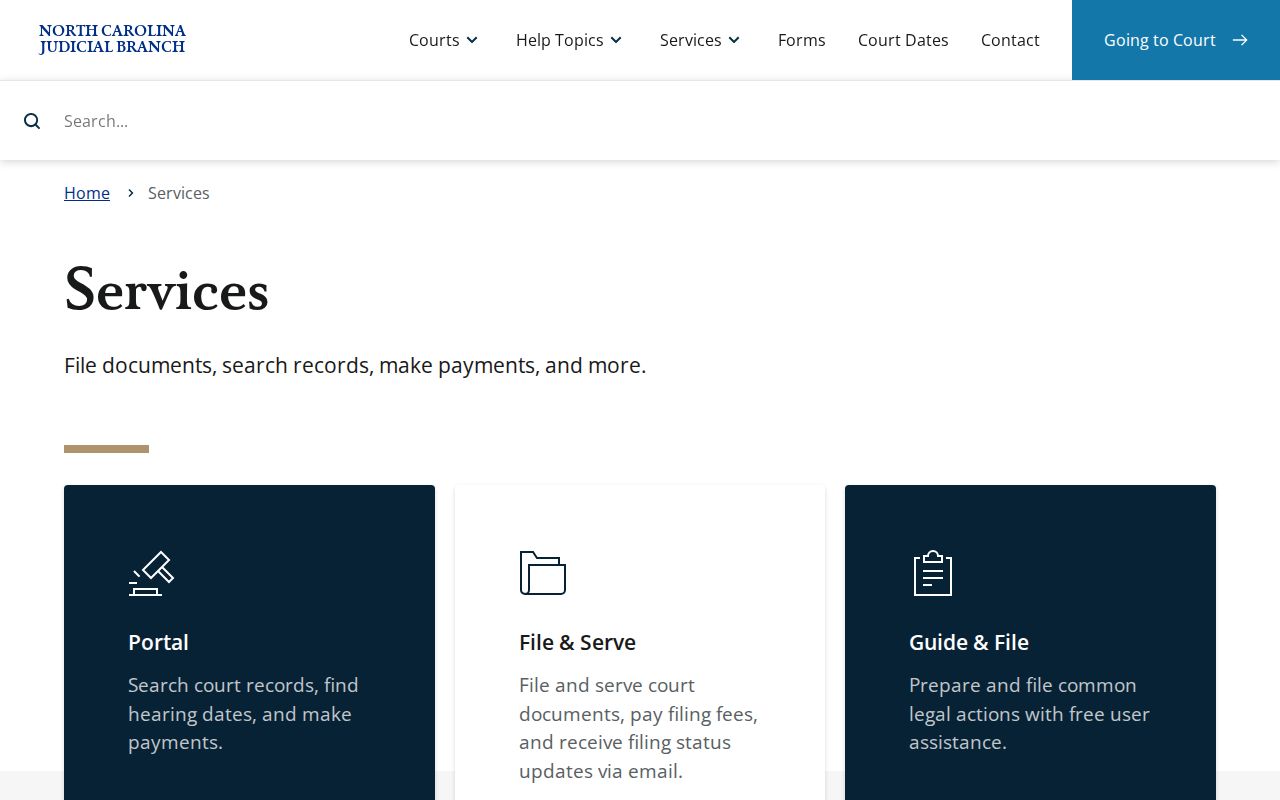
Online searches have limits. The Haywood clerk counter and public terminal complete the access chain when a court docket search cannot produce the public record you need.